How to create sharepoint list using excel

List is important part of SharePoint. Feature to create list from spreadsheet is very useful. User can create the list using spreadsheet/excel using add list option in site content.

Create a SharePoint List from Excel:

1. Log in to your tenant and move to the site.

2. Now navigate to the Site content and click on the New option and select List.

SharePoint List
 
3. Select the From Excel option and Upload file or you can choose file from site also.

SharePoint List
 

4. File you uploaded, if it's not in the table format, you need to do that. 
  •  Click on the link Go to file in this example it is Expense Info.xlsx, present above to the Refresh option.
  •  Select the cells and Click on the Format as table.
  •  Refresh it.

SharePoint List

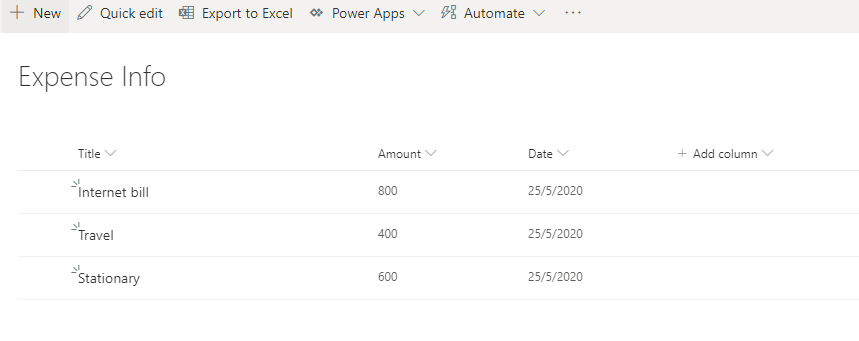
5. Once you refresh it, Give the name to the list and check the column type, if it's not appropriate you can change this from column type drop down. Now click on Create.

SharePoint List

6. Now your list is created.

SharePoint List

Note: In this example I used date in one column but when I imported that excel, on SharePoint,  column type is showing as single line of text and in that column there is no option available to change column type to date but when I created list. In list it show column type as  the date type. I will update you on this soon.

Thanks.


Comments

Popular posts from this blog

SPFx Interview Questions With Answers

In this article, we are going to discuss interview questions related to the SPFx (SharePoint Framework Development ). It will help you to prepare for the interview and in getting clarity on the core concepts of SPFx development. What is SPFx? SPFx, short for SharePoint Framework,  SPFx  allows us for client-side SharePoint development, we can easily connect with SharePoint data and it also supports for open source tools. What is the major difference between SPFx web part and the SharePoint app? Both the development model supports client-side development but the major difference between these two is that the SharePoint app(add-in) runs on the iframe. What you can build with SPFx? Using SPFx framework we can customize the SharePoint pages. We can build things mentioned below using the SharePoint Framework(SPFx). Web parts, Extensions, Adaptive Card, Library Component How many types of extensions we can create using SPFx? SPFx has three extension types: Application Customizers: U...

SharePoint Framework SPFx Node Version Compatibility

How to check the compatibility between the SPFx version and the Node.js version The SharePoint Framework (SPFx) is a client-side development platform used to develop web parts and extensions for SharePoint. The SharePoint Framework (SPFx) is compatible with the Node.js versions. Existing SPFx solutions may have different SPFx versions as compared to the current solutions. To make the SPFx solution run, Node.js is required, and in this blog, I am sharing steps to check the compatible node module for SPFx.  Find the SPFx version from the solution:  Open the project solution and navigate to the "package.json" file. In package.json file you will find  "@microsoft/sp-core-library" key and value of this particular key is the version of the SPFx.       Ex:    "@microsoft/sp-core-library": "1.14.0" Another way to find the SPFx version is by command, open the command prompt and run the command mentioned below: npm ls -g --depth=0 @microsoft/generator-s...

How to Upgrade SharePoint Web Parts to the Newest Version

Updating the SharePoint/SPFx web parts or other solution is very common requirement, Webparts we can add from the SharePoint store or can be uploaded by our organization. To update a SharePoint web part to the latest version, start by uploading the updated SPFx package to the App Catalog. Then, make sure to upgrade the web part on the site where it’s being used. In this blog will be discussing ways to upgrade both package from the SharePoint app store or the the custom uploaded from the organization Update the web part added from the SharePoint app store: Go to the tenant level app catalog site. Select the app which you want to upgrade. Once you select the app, go the top ribbon and select file and click on the "Upgrade Store App", updated version will be added on the appcatalog if the new version is available on the store. Note: If you built the custom webpart then upload it to the app catalog. Install the upgraded solution: Navigate to the site collection where you have ins...